
This tutorial is about configuring a Netgear Dual Band router connected to a Cable Modem. Also, the SSIDs and pass-phrases on the images are fictitious.
Note: The Wi-Fi Protected Setup (WPS) using the push button dome on the router won’t be included in this tutorial as this tutorial is written to be easier to follow.
First Option – How to setup your Netgear dual band router by using a pre-configured setting.
If you’d like a hassle-free guide to setup your Netgear dual band router, you may follow this procedure.
To begin, unplug the power cable to turn off your modem. Connect the Ethernet cable to the router’s Internet port. Turn on or plug-in the power cable of the modem. Connect the power adapter to the router to turn it ON. Connect your computer to the router by using an Ethernet cable plugged in to the router’s Ethernet port. Wait for all the lights to be stabilized.
Open up your favorite browser (IE, Chrome or Firefox), type http://192.168.1.1 then press enter.
It will prompt you to type the default username which is admin and the password is password.
It will prompt you to type the default username which is admin and the password is password.

If you have successfully setup your Netgear router you should now see the page below. Look at the back of your router and locate a Sticker with the default SSID (your wireless network name) and the pass-phrase. You will need this information to connect your wireless devices such as computers, smart phones, printer, gaming console, etc.

You may stop now and there is no need to proceed further but be sure to change the Admin’s default password right away. See the first part of the next tutorial for how to change the Admin Password.
Second Option – How to setup your Netgear router by using a manual configuration.
If you prefer a manual setup, you may proceed to the rest of this tutorial. It is recommended to change the Admin Password immediately for security purposes. I always prefer to setup the router manually so that I’ll have a preference on how to setup the wireless network.
Close the browser then re-open it and type 192.168.1.1 then press enter. Go back to the router’s setting and enter the default User Name which is admin and the default Password which is password, then press OK.
Close the browser then re-open it and type 192.168.1.1 then press enter. Go back to the router’s setting and enter the default User Name which is admin and the default Password which is password, then press OK.
To change the Admin’s password, go to Advanced Tab>Administration>Set Password.

Click on the Basic tab – from here you may manually configure your router.
To modify the Internet – you may either setup your Internet dynamically or manually assign Static IPs; Wireless – to secure your network; Parental Control – to block unwanted sites and restrict browsing hours; Ready Share Network – if you have USB devices that you need to plug in to the router and shared off from your network and Guest Network – create a separate SSID for your Guests.
To modify the Internet – you may either setup your Internet dynamically or manually assign Static IPs; Wireless – to secure your network; Parental Control – to block unwanted sites and restrict browsing hours; Ready Share Network – if you have USB devices that you need to plug in to the router and shared off from your network and Guest Network – create a separate SSID for your Guests.

Or click on the Advanced tab and select the Setup Wizard to setup your wireless network.

You may select the Basic tab or Setup Wizard to configure your router’s wireless channel and mode.
In the Basic tab click on Wireless; in here you may assign the SSID, change the Channel and change the mode if needed.
In the Basic tab click on Wireless; in here you may assign the SSID, change the Channel and change the mode if needed.

The following features of a Netgear router are all optional, you may decide later on if you will need to setup these features:
Ready SHARE – From the Basic tab select Ready SHARE. You may access your USB external storage device on any Windows Operating Systems by clicking on the Start button then type //readyshare in the Search programs and files box then press enter. From a Mac computer, select Go>Connect to Server then type smb://readysharein the Server Address then click Connect.
Ready SHARE – From the Basic tab select Ready SHARE. You may access your USB external storage device on any Windows Operating Systems by clicking on the Start button then type //readyshare in the Search programs and files box then press enter. From a Mac computer, select Go>Connect to Server then type smb://readysharein the Server Address then click Connect.

Guest Network – From the Basic tab select Guest Network. You may enable this option to have a separate SSID for your Guests.
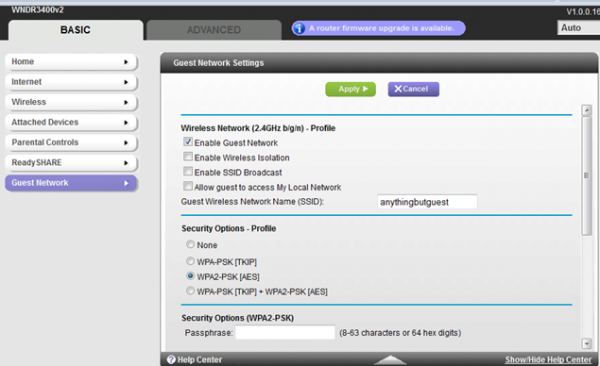
The following features of a Netgear router are all optional, you may decide later on if you will need to setup these features:
Quality of Service (QoS ) setup – to prioritize any applications
Quality of Service (QoS ) setup – to prioritize any applications

Wireless Repeating Function is helpful to extend your wireless coverage in your home.
Note: The Wireless Repeating function won’t work for WPA2, only up to WPA network security.
Note: The Wireless Repeating function won’t work for WPA2, only up to WPA network security.

Save all the Settings when finished adding all other features.
To verify that all important router settings are properly configured, including the Wireless Area Network (WAN ) and Local Area Network (LAN) IPs information, click on Advanced tab then Advanced Home tab.
If you need any technical assistance click on Help and Support Documentation.
To verify that all important router settings are properly configured, including the Wireless Area Network (WAN ) and Local Area Network (LAN) IPs information, click on Advanced tab then Advanced Home tab.
If you need any technical assistance click on Help and Support Documentation.
Optional: You may wish to buy a dual band Wi-Fi adapter for a better network performance utilizing both bands (5GHz and 2.4GHz) and to utilize HD video streaming.
Comments